
TLDR
- Connecting Claude to an app depends on where its MCP server runs and who switches it on. The post leads with a table of three paths so readers can tell which one they're on before starting.
- Linear is a remote server. You connect it from Claude's connector menu and sign in through your browser. Claude Code is the only step that needs a terminal, and Linear offers a read-only option.
- Grafana runs on your own machine. Its extension bundle needs no config file; the binary or Docker route does, and read-only mode is available.
- ServiceNow needs an admin to publish tools in the MCP Server Console first. You then sign in with OAuth, and every call runs under your own permissions.
- Unmeshed sits behind the custom connectors. It can wrap steps across apps into one MCP tool, with one gateway and a history of every call. We don't ship servers for Linear, Grafana, or ServiceNow.
Claude MCP setup feels harder than it should, mostly because every guide shows one app and yours is a different one.
So we picked three. Linear, Grafana, and ServiceNow all have an MCP server, and each one connects to Claude a different way. Linear is a menu click. Grafana runs on your own machine. ServiceNow needs an admin to switch it on first. We'll walk through all three, plus a quick way to tell which path your app needs before you waste an hour.
The title says no code, and that holds for most of it. The few steps that need a terminal or a config file are labeled.
Think of a travel adapter. Your laptop stays the same, but the wall socket changes in every country. Claude is the laptop. Each app is a different socket. If you want the background first, our post on Claude connectors covers what they are and which ones to turn on.
We build workflow software, so we'll say where Unmeshed fits near the end. Okay, let's get into it.
1. What Is Claude MCP?
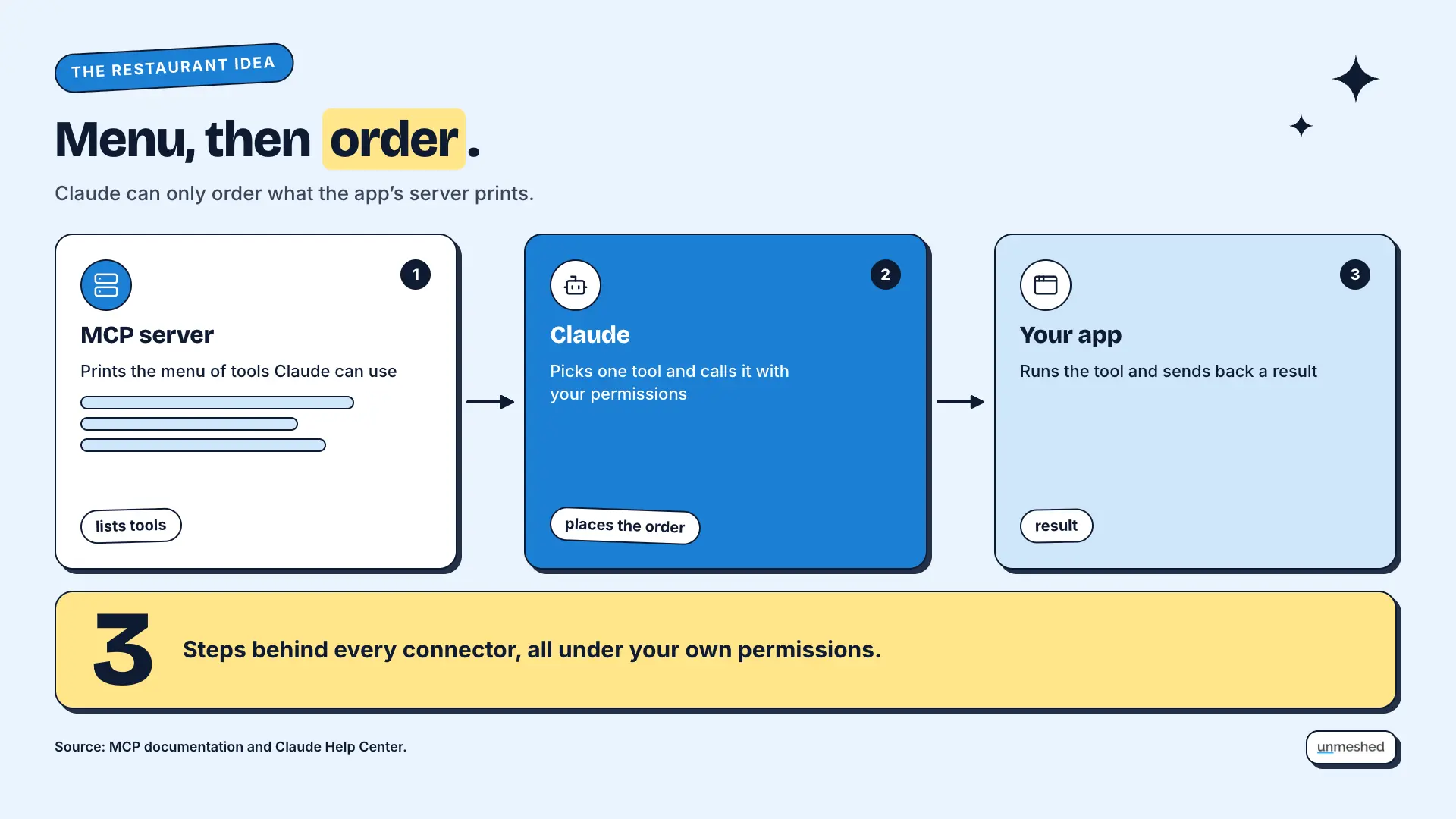
Claude MCP means using the Model Context Protocol to connect Claude to your apps. MCP is an open standard Anthropic created, and it lets Claude call tools in services like Linear, Grafana, and ServiceNow. Claude asks the app's MCP server what it can do, then uses those tools.
That's the short version. If you want the long one, the MCP intro docs explain the standard, and our post on MCP uses shows what teams do with it.
MCP in Plain Words
MCP is a shared way for an AI app and another app to talk. The app runs an MCP server that lists what Claude can do, such as find an issue or read a dashboard. Claude picks a tool, calls it with your permissions, and reads the result.
Picture a menu at a restaurant. The server prints the menu, and Claude orders from it. Claude can only order what's on the menu, and it can only reach what your account can reach.
Claude Connectors and Claude MCP Are the Same Idea
Claude connectors are how Claude uses MCP inside its apps. When you add a connector, you're adding an MCP server. A listed connector is one Anthropic points you to, and a custom connector is any remote MCP server you add by its URL.
So when people search for claude mcp, they usually mean one of two things. They want a listed connector turned on, or they want to add their own server. We'll cover both as we go.
2. How Do You Connect Claude to an App With MCP?
To connect Claude to an app with MCP, find out where the app's MCP server runs and who has to switch it on. Remote servers connect from the menu, local servers run on your machine, and some apps need an admin to publish the tools first.
That one question is why a single guide never fits every app. Here's how our three apps line up.
| App | Where the Server Runs | Who Switches It On | How Claude Signs In | Code Needed |
|---|---|---|---|---|
| Linear | Linear's cloud, remote | You, from the connector menu | OAuth in the browser | None in the menu, one terminal command for Claude Code |
| Grafana | Your machine, local | You, with the bundle or a config file | A Grafana service account token | None with the bundle, a config file for the binary or Docker |
| ServiceNow | Your ServiceNow instance, remote | A ServiceNow admin | OAuth, with a client the admin registers | None for you; admin setup on the ServiceNow side |
Same Claude, three different plugs. Let's look at what each path means.
Remote, Local, and Admin Enabled Servers
A remote MCP server runs in the vendor's cloud, and you connect by URL. A local server runs on your own computer, usually started by Claude Desktop. An admin-enabled server sits inside a company system, where an administrator chooses which tools to publish before anyone can connect.
Linear is the remote one. Grafana is the local one. ServiceNow is the admin-enabled one. Once you know which kind you have, the steps stop feeling random.
What You Need Before You Start
Before you start, check three things. Your Claude plan supports the connector, you have permission to add it, and you can sign in to the app. On Team and Enterprise, an Owner adds a custom connector first, then each person signs in on their own.
Anthropic's Help Center says custom connectors work on Free, Pro, Max, Ultra, Team, and Enterprise plans. Free users can add one. Once an Owner adds a connector, each member connects and enables it, so Claude only reaches what that person can reach.
Why Claude Cannot Reach a Private Server
Claude connects to a remote MCP server from Anthropic's cloud, not from your laptop. So the server must be reachable from the public internet on HTTPS port 443. A server behind a VPN or firewall won't connect unless you allowlist Anthropic's IP ranges.
This surprises people, because Claude Desktop runs on your computer. But remote connectors are brokered through your Claude account, so the connection starts at Anthropic. If your server sits on a private network, you'll need to allow Anthropic's IP addresses. A local server set up in the Claude Desktop config file is different, since it uses your own network.
3. How Do You Set Up a Linear MCP Server in Claude?
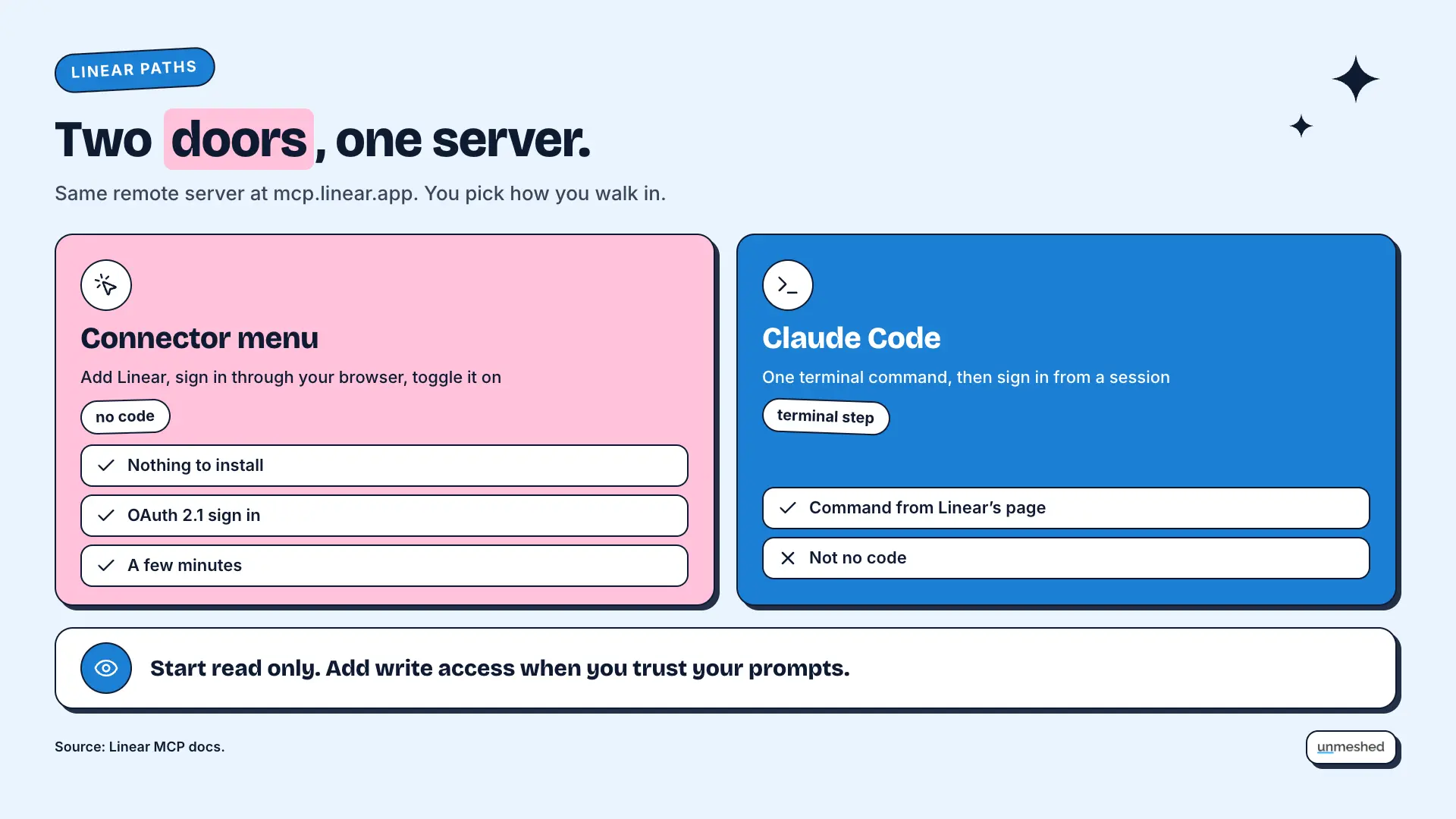
The Linear MCP server is a remote server at mcp.linear.app, so you connect it from Claude's connector menu and sign in with your Linear account in the browser. It uses OAuth 2.1. You don't install anything, and it takes a few minutes.
If you're looking for a Linear MCP server setup that needs no code, this is the easiest of the three. Everything below comes from Linear's MCP docs.
Connect Linear From the Connector Menu
On Claude Team and Enterprise, go to the connectors page and connect Linear. On Free and Pro in Claude desktop, open settings, then Connectors, and add the Linear connector. Then sign in to Linear when asked and toggle it on in a chat.
That's the whole flow. You approve access in your browser, come back to Claude, and the Linear tools show up in the tool list. Linear also has a beta called Claude auto connect for Business and Enterprise plans, where members with matching accounts connect without a separate sign-in. It needs admin access in both Claude and Linear.
If you can't find Linear in the list, you can add it as a custom connector with its server URL. Our post on Claude connectors has the click path.
Connect Linear in Claude Code
In Claude Code, you add Linear with one terminal command. Run claude mcp add, give it the http transport type, a name, and Linear's server URL, then open a session and run the mcp command to sign in. This is the only step here that needs a terminal.
We won't print the full line here, because the flags are easy to mistype. Copy it from Linear's page, which lists the exact command. The Claude Code docs on connecting to MCP servers cover the rest. If you use Claude Code MCP every day, add it once, and it stays.
Start With Read-Only Access
Linear lets you connect read-only so Claude can look but not change anything. Use the read-only endpoint, or connect to the normal one and grant only the read scope. Start there, then add write access when you trust the prompts you use.
Linear also lists example prompts. One turns standup notes into comments on the right issues, and it asks Claude to show the planned changes before posting anything. Another summarizes a finished cycle. Both are good first tries. A few more notes from Linear's FAQ. Each workspace needs its own sign-in, and the old SSE endpoint is deprecated.
4. How Do You Set Up a Grafana MCP Server in Claude?
The Grafana MCP server runs on your own machine, so Claude Desktop starts it, and it talks to your Grafana with a service account token. The easiest way is Grafana's extension bundle, which you open in Claude Desktop, and it asks for your URL and credentials.
Here's what you need first, from Grafana's guide. Claude Desktop, Grafana 9.0 or newer, and a service account token. If you want a Grafana MCP server that Claude can use today, start with the bundle.
Install the Extension Bundle
Download the mcpb file from the Grafana MCP project's GitHub releases and open it with Claude Desktop. It asks for your Grafana URL and credentials, so you don't edit no config file. Grafana notes the bundles are not code-signed, so check the source.
You'll find the files on the project's releases page. Grafana also says the copy in Claude Desktop's extension directory may lag behind the latest release. If you want the newest version, take it from GitHub. This is how most people will get an mcp server for Claude Desktop running, since there's no file to edit.
Set It Up With a Config File Instead
If you skip the bundle, install the server binary or use Docker, then add it to the Claude Desktop config file, claude_desktop_config.json. You set two values: your Grafana URL and a service account token. If Claude can't find the binary, give it the full path.
This is the route that needs a config file, so it isn't no-code. Here's where the file lives.
| System | Config File Location |
|---|---|
| macOS | ~/Library/Application Support/Claude/claude_desktop_config.json |
| Windows | %APPDATA%\Claude\claude_desktop_config.json |
| Linux | ~/.config/Claude/claude_desktop_config.json |
The entry names the server, points to the binary or Docker image, and sets your Grafana URL and the service account token in its environment. Grafana's page has the exact block to copy. If you see a not found error for the binary, replace the command with the full path to the file. After any change, fully quit Claude Desktop and reopen it.
Turn On Read-Only Mode
Grafana's server has a read-only mode that turns off write tools, so Claude can look at dashboards without editing them. You switch it on with a disable write flag in the server arguments. Do it first, then loosen it later if you need to.
Same idea as Linear. Looking is cheap, and changing is where mistakes cost you. Grafana's page shows where the flag goes. It also has a debug flag if you need more detail in the logs.
5. How Do You Set Up a ServiceNow MCP Server in Claude?
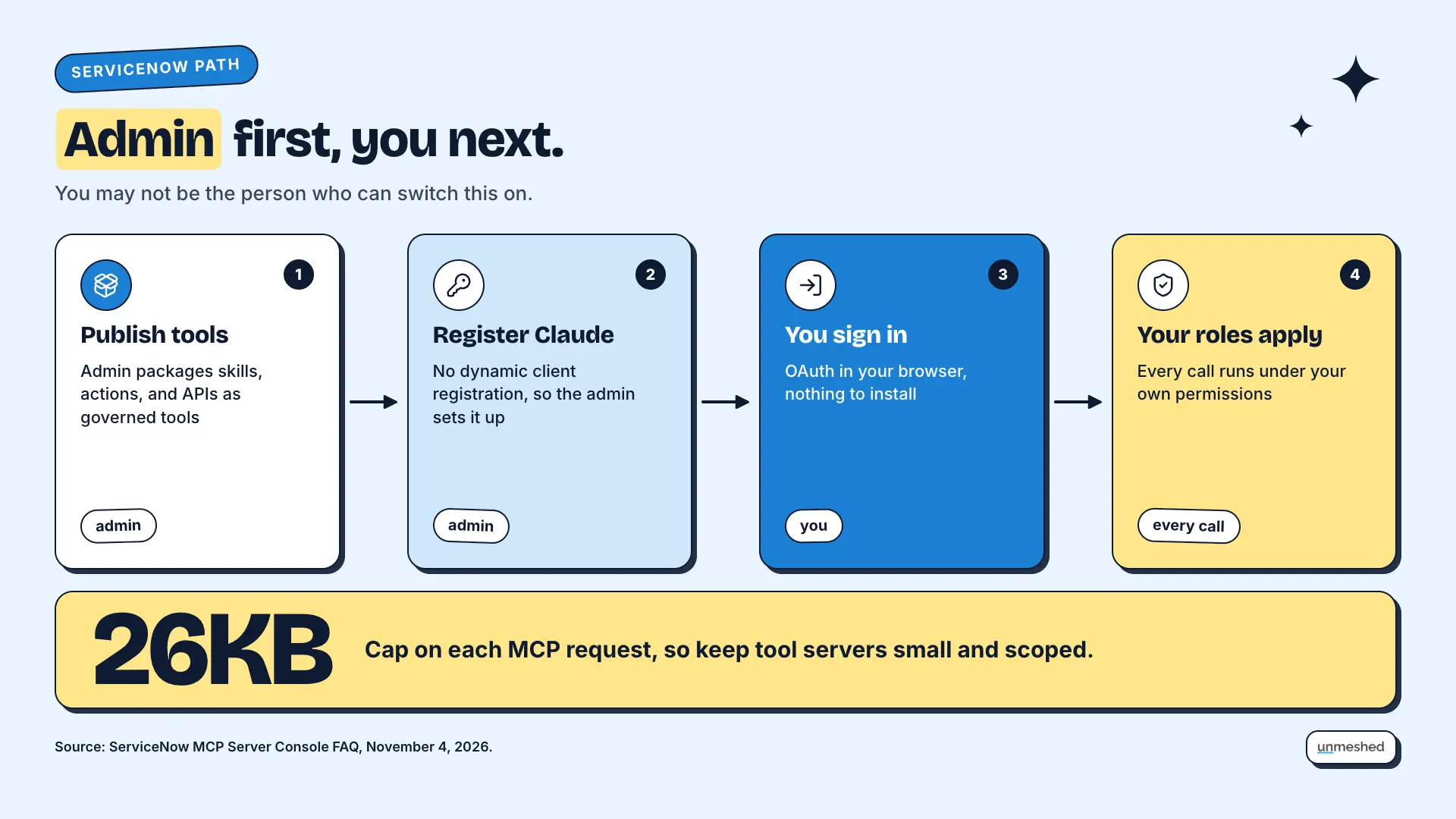
ServiceNow's MCP server is turned on by an administrator using the MCP Server Console. The admin publishes tools such as incident lookups, then registers Claude as a client. You sign in with OAuth, and every call runs under your own ServiceNow permissions.
This is the path where you may not be the person who can do it. The ServiceNow MCP Server setup lives on the admin side, and the best source is ServiceNow's own MCP Server Console FAQ, written by a ServiceNow employee and edited on November 4, 2026.
What the ServiceNow Admin Switches On
The admin uses MCP Server Console to package Now Assist skills, Knowledge Graph, subflows, actions, and scripted REST APIs as governed tools. A Quickstart Server ships ready to use, and the tools on it depend on which Now Assist apps are installed. One server per use case is recommended.
The Quickstart Server is the easy place to start. With Now Assist for ITSM installed, it includes tools to look up incident records and summarize them. ServiceNow's advice is to keep each server small and scoped, such as one for IT and one for HR, because a long tool list costs tokens and can confuse the model. ServiceNow says its docs are moving to a new Otto name, so some links may shift.
How Claude Signs In to ServiceNow
ServiceNow uses OAuth 2.0 with the Authorization Code Grant. The admin registers Claude as a client first, because ServiceNow doesn't support dynamic client registration. Then you sign in through the browser, and tool calls run under your own roles and access controls.
Admins can use ServiceNow's own OAuth, set up in the Machine Identity Console, or an identity provider such as Okta or Microsoft Entra. The FAQ lists patch level requirements for the identity provider route, so hand that page to your admin. It names Claude Desktop as an example of a client that connects. We couldn't find a ServiceNow page written for Claude specifically, so treat the FAQ as the guide.
Limits to Know Before You Plan
ServiceNow supports remote servers over Streamable HTTP, but not stdio or local servers. MCP requests are capped at 26KB. Flows must have an invoke from AI access rule and run synchronously to be offered as tools. Tool descriptions decide which tool Claude picks, so write them well.
That last one matters more than it sounds. ServiceNow says vague descriptions are the most common reason a client calls the wrong tool. A good description says what the tool does and when to call it. Also remember the firewall point from earlier. Claude has to be able to reach your instance. For pricing and metering questions, ServiceNow says to ask your account team.
6. How Do You Check That Claude MCP Works?
To check that Claude MCP works, open a new chat, make sure the connector is toggled on, and ask a small question that needs the app, such as listing your Grafana dashboards or your open Linear issues. If tool names appear and results come back, it works.
Keep the first test small and read-only. If it fails, the table below covers the usual suspects.
Ask a Test Question
Ask something small and checkable. Grafana's own docs suggest asking Claude to list your dashboards. For Linear, ask for your open issues, and for ServiceNow, ask for a specific incident by number. A small read tells you the connection works before you let it write.
If you changed a config file, fully quit Claude Desktop and reopen it first. Grafana's guide says a restart is part of the check, and closing the window isn't the same as quitting.
Fix the Common Errors
Most setup errors are one of four things. The server isn't reachable from Claude, the sign-in expired, the binary path is wrong, or a saved sign-in is stale. Reconnect first, then check the path, the redirect URL, and your firewall.
| Symptom | Likely Cause | What the Vendor Says to Try |
|---|---|---|
| Linear shows an internal server error | Stale saved sign-in | Clear the saved auth folder Linear names in its FAQ, then reconnect |
| Linear connection drops | Client-side reset needed | Disconnect and reconnect in your client's MCP settings |
| Grafana says the binary was not found | Binary not on your PATH | Use the full path to the binary in the config |
| Grafana shows nothing | Config not reloaded or bad token | Fully quit and reopen Claude Desktop, then check the logs |
| ServiceNow tools are not discoverable | Redirect URL or expired token | Check the connection and credential records, the redirect URL, and the token expiry |
| A custom connector will not connect | Server not reachable from Anthropic's cloud | Allow Anthropic's IP ranges and use HTTPS on port 443 |
The first two rows come from Linear's FAQ, the next two from Grafana's guide, the fifth from the ServiceNow FAQ, and the last from the Claude Help Center.
7. Is It Safe to Connect Claude to Your Work Apps?
Connecting Claude to a work app is safe when you control what it can do. Claude only reaches what your account can reach, but a connected app can still change data. Start read-only, connect only servers you trust, and review each tool approval before you allow it.
Our Claude connectors post covers the Team and Enterprise controls in detail, so we won't repeat them. Here's the short version for these three apps.
Read Only First, Write Access Later
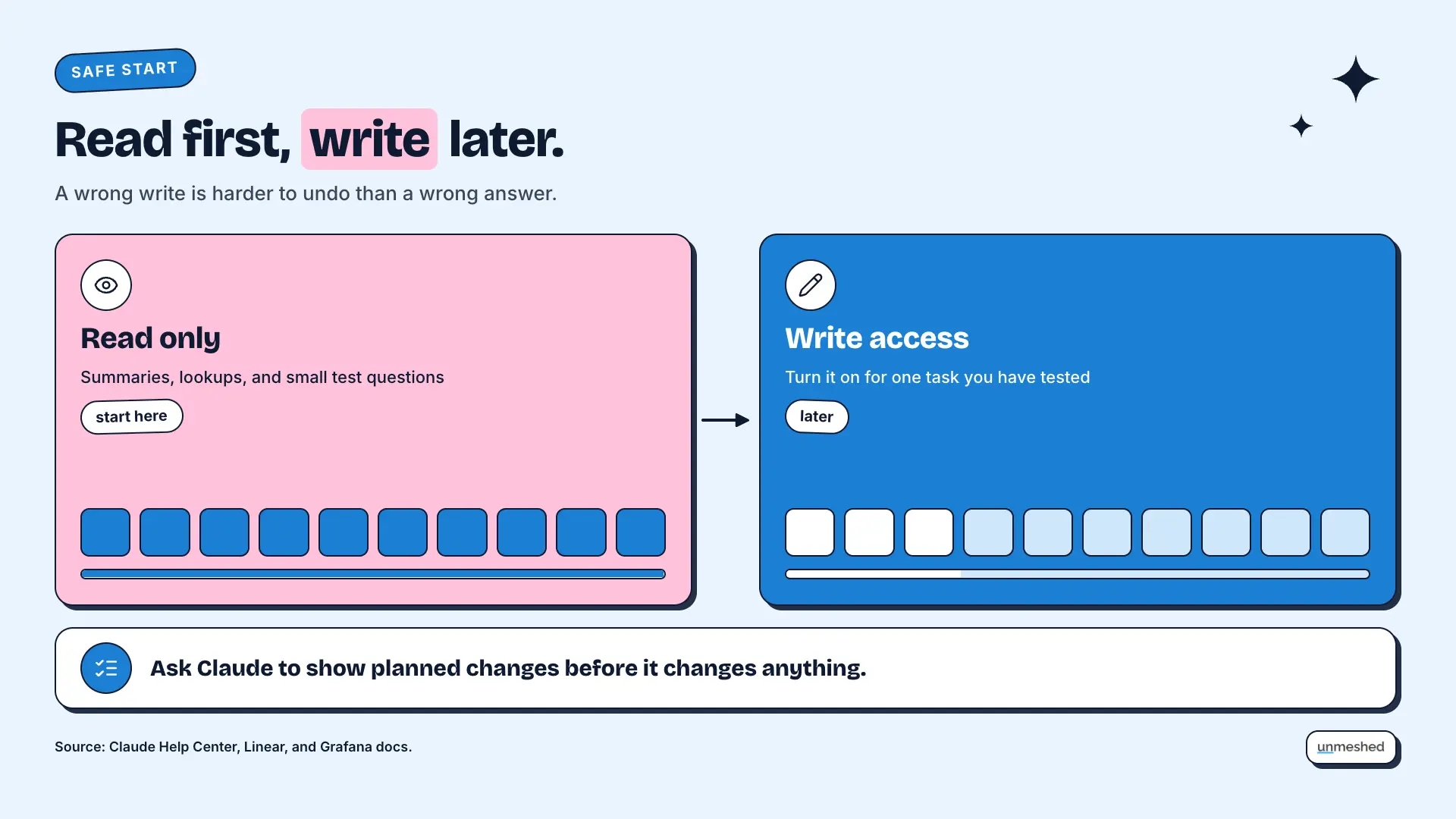
Both Linear and Grafana offer a read-only option, and ServiceNow lets the admin choose which tools exist. Start with reads, such as summaries and lookups. Turn on writes only for a task you've tested, because a wrong write is harder to undo than a wrong answer.
A good rule is to ask Claude to show you what it plans to change before it changes it. Linear's own example prompts do exactly that.
Untrusted Servers and Shared Credentials
Anthropic warns that custom connectors reach services it hasn't verified. Only add servers from organizations you trust, watch for prompt injection in tool results, and use a limited credential. On Team plans, a shared API key gives everyone that key's access.
Prompt injection means a tool result carries hidden instructions that try to steer Claude. Claude has built-in protections, but Anthropic still says to review tool approvals and only click allow always for a server you trust to run unsupervised. If you run many agents, our page on agent governance covers the bigger picture.
8. How Does Unmeshed Fit With Claude MCP?
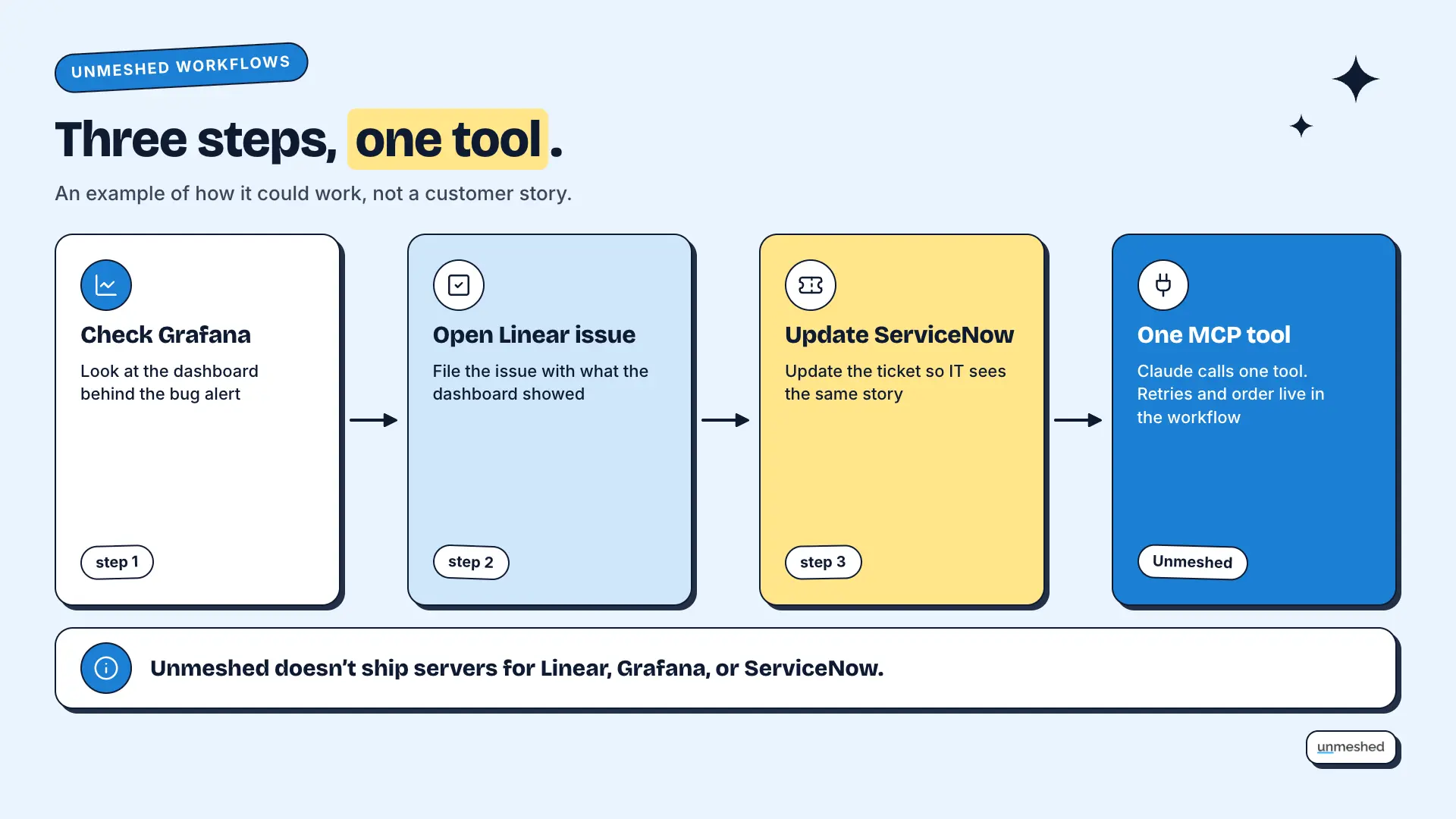
Unmeshed sits behind the custom connectors you add. It publishes your workflows as MCP tools, so Claude can run a multi-step job as one call with retries and a history. It also puts several MCP servers behind one gateway. It doesn't replace Linear, Grafana, or ServiceNow servers.
Be clear about the line. Those three vendors run their own servers, and you should use them. Where we help is the work between them, and the control around it. Our MCP gateway page has the details, and it's built on durable workflows and agentic workflows. A custom connector only works if the endpoint is reachable and signs in the way Claude expects, so check that first. In a Claude MCP setup that spans several apps, this is the piece most teams end up wanting.
One Tool Instead of Three Steps
Say a bug alert means checking a Grafana dashboard, opening a Linear issue, and updating a ServiceNow ticket. Wrap those steps in one Unmeshed workflow and publish it as an MCP tool. Claude calls one tool, and the retries and ordering live in the workflow.
That's an example of how it could work, not a customer story. The point is that Claude no longer has to remember the order of three separate tools, and a failed step can retry without starting over.
One Gateway for Many Servers
Once you connect more than a few MCP servers, each one needs its own sign-in and its own rules. Unmeshed can put several MCP servers behind one gateway, with shared sign-in and role-based access, so you manage one door instead of many.
It's the same problem as the travel adapter. Three sockets means three adapters, and a bag full of them gets messy fast.
A History of Every Call
Each tool call that runs through Unmeshed leaves a history you can inspect, search, and replay. That helps when something goes wrong, because you can see which step ran, what it returned, and what Claude did next. Vendor consoles still hold their own logs.
We don't replace those logs. We add one place that shows the whole job from start to finish.
Turn Three Steps Into One Tool.
Wrap the steps Claude keeps repeating into one workflow, publish it as an MCP tool, and let it run with retries and a history.
Wrap My StepsConclusion
Claude MCP setup comes down to one question. Where does the app's server run, and who switches it on? Linear is a menu click, Grafana is a bundle or a config file, and ServiceNow needs an admin. Start read-only, test with a small question, then add more.
What stuck with us is how often the path matters more than the app. Same Claude, different plug. Most of the confusion we see in setup guides comes from treating three sockets as one. Once you ask the path question first, the rest is clicking through screens.
That's where Unmeshed comes in, for the jobs that span more than one app and the single gateway in front of them. This week, pick one app, connect it read-only, and ask it one question. Then you'll know which path your next app needs.
Frequently Asked Questions
Sources
- 1.MCP server, Linear Docs
- 2.Claude Desktop, Grafana documentation
- 3.MCP Server Console FAQ, ServiceNow Community
- 4.Get started with custom connectors using remote MCP, Claude Help Center
- 5.Connect to MCP servers, Claude Code Docs
- 6.IP addresses, Claude Platform Docs
- 7.What is the Model Context Protocol, MCP Documentation
- 8.MCP Gateway, Unmeshed
Connected the apps but not the steps between them?
Tell us the job. We'll show you the tool.
Share the apps Claude should touch and the order the steps run in. We'll sketch how it becomes one MCP tool with sign in, retries, and a record of every call.