TLDR
- Claude connectors let Claude reach your apps and act in them using your own permissions.
- You turn them on from the "+" menu, and on Team and Enterprise, an Owner enables them first.
- Start with two or three for apps you use daily, like Google Drive, Gmail, and Slack.
- MCP apps show a live interface in the chat, and custom connectors let you add your own MCP server.
- Unmeshed publishes your workflows as MCP tools, so Claude can run them with sign-in, retries, and a full history.
So, what are Claude connectors? If you've seen the Connectors option in Claude and clicked right past it, you're not alone.
Here's the short version. Connectors let Claude reach into your apps, like Google Drive or Slack, and actually do things there.
Most guides list a pile of them and stop. We'll tell you which ones we'd turn on first, and why.
Okay, let's get into it.
1. What Are Claude Connectors?
Claude connectors let Claude reach your apps and services, read your data, and take actions inside them. You can ask it to search Google Drive, create a Linear issue, or send a Slack message. They run on MCP, the open standard Anthropic created.
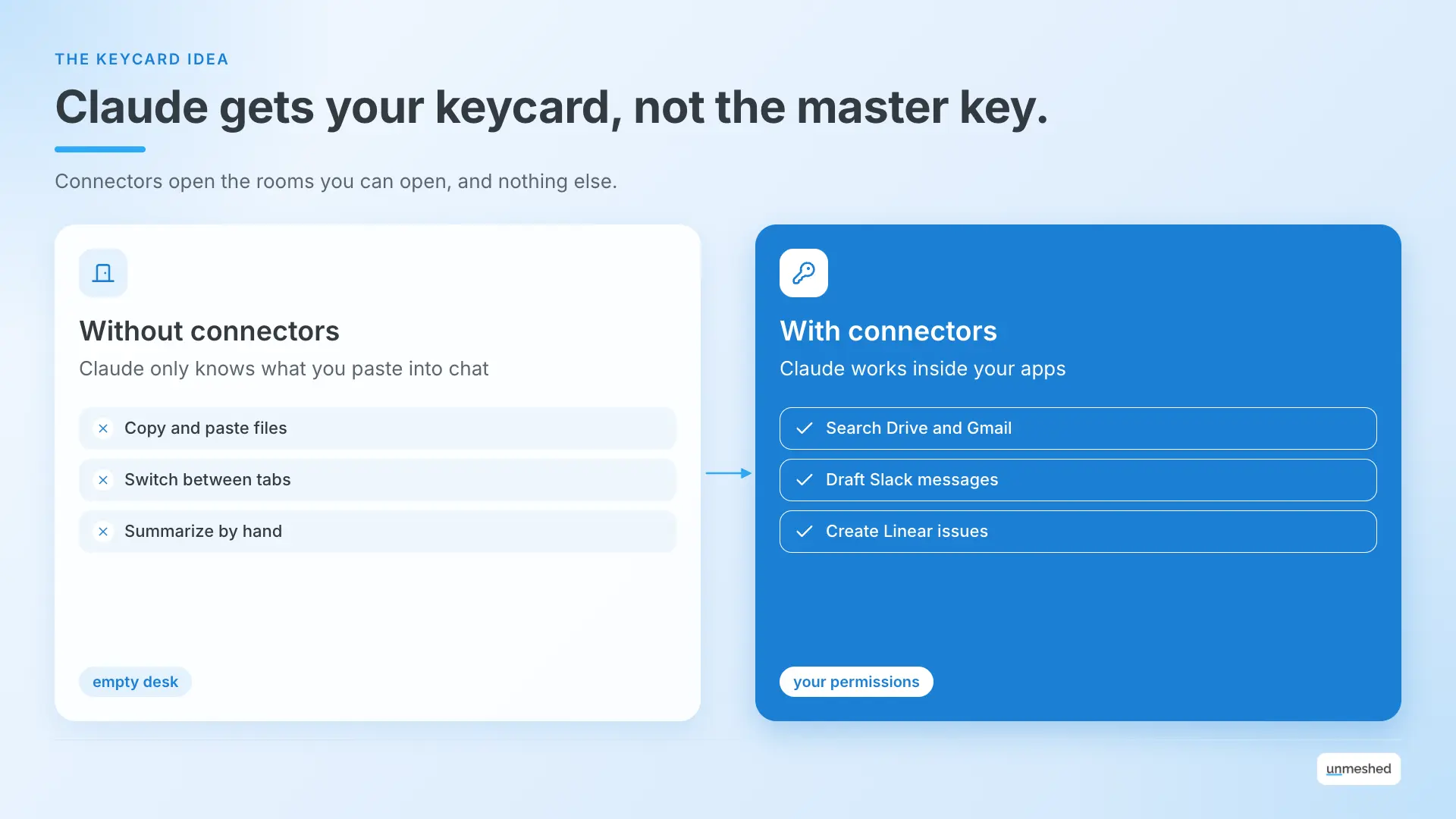
Picture Claude as a new coworker on day one. Without connectors, they sit at an empty desk and only know what you tell them. With connectors, you hand them a keycard. But it's your keycard, so it opens the rooms you can open and nothing else.
If you search for claude mcp, you land on the same idea from the other side. MCP is the standard, and connectors are how Claude uses it. The Claude docs describe four kinds.
| Type | What It Is | Example |
|---|---|---|
| Prebuilt integrations | Connectors Anthropic built for popular services | Google Drive, Gmail, Slack |
| Remote MCP servers | Cloud-hosted servers you add by URL | A server your company runs |
| MCP Apps | Connectors that show a live interface in the chat | Asana, Figma |
| Desktop extensions | Local servers packaged for Claude Desktop | Called MCP Bundles in the docs |
Most people only ever touch the first two. We'll get to the rest.
2. How Do Claude Connectors Work?
Claude connectors work by linking Claude to an MCP server run by the app. Claude asks the server which tools it has, picks one when your request fits, and calls it using your permissions. If you can't open a file in the source app, Claude can't either.
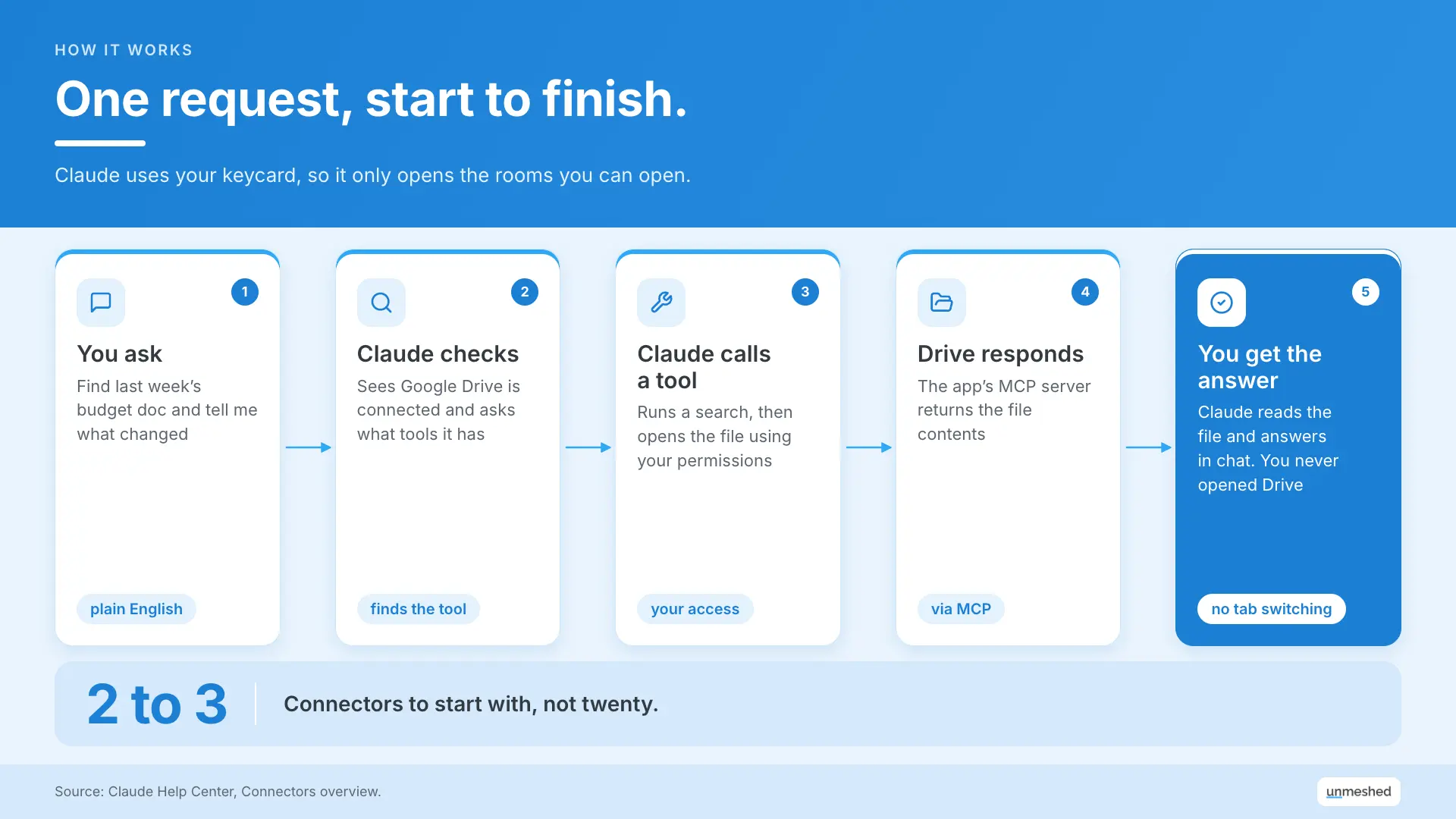
Here's one request from start to finish. You type, "find last week's budget doc and tell me what changed." Claude sees Google Drive is connected and asks it what it can do. Then it runs a search, opens the file, reads it, and answers in the chat. You never opened Drive.
You don't have to name the app every time, either. Once something is connected, Claude can bring it into a chat on its own when it fits what you asked.
You'll also hear these called mcp connectors. Same thing, just the general name. And one detail that matters later. Web connectors are accessed from Anthropic's cloud, not from your laptop.
3. How Do You Connect Claude to Apps?
To connect Claude to apps, open the "+" menu in a chat or go to Customize and Connectors, pick a connector from the directory, and sign in. Then toggle it on in any chat where you want it. On Team and Enterprise plans, an Owner enables it first.
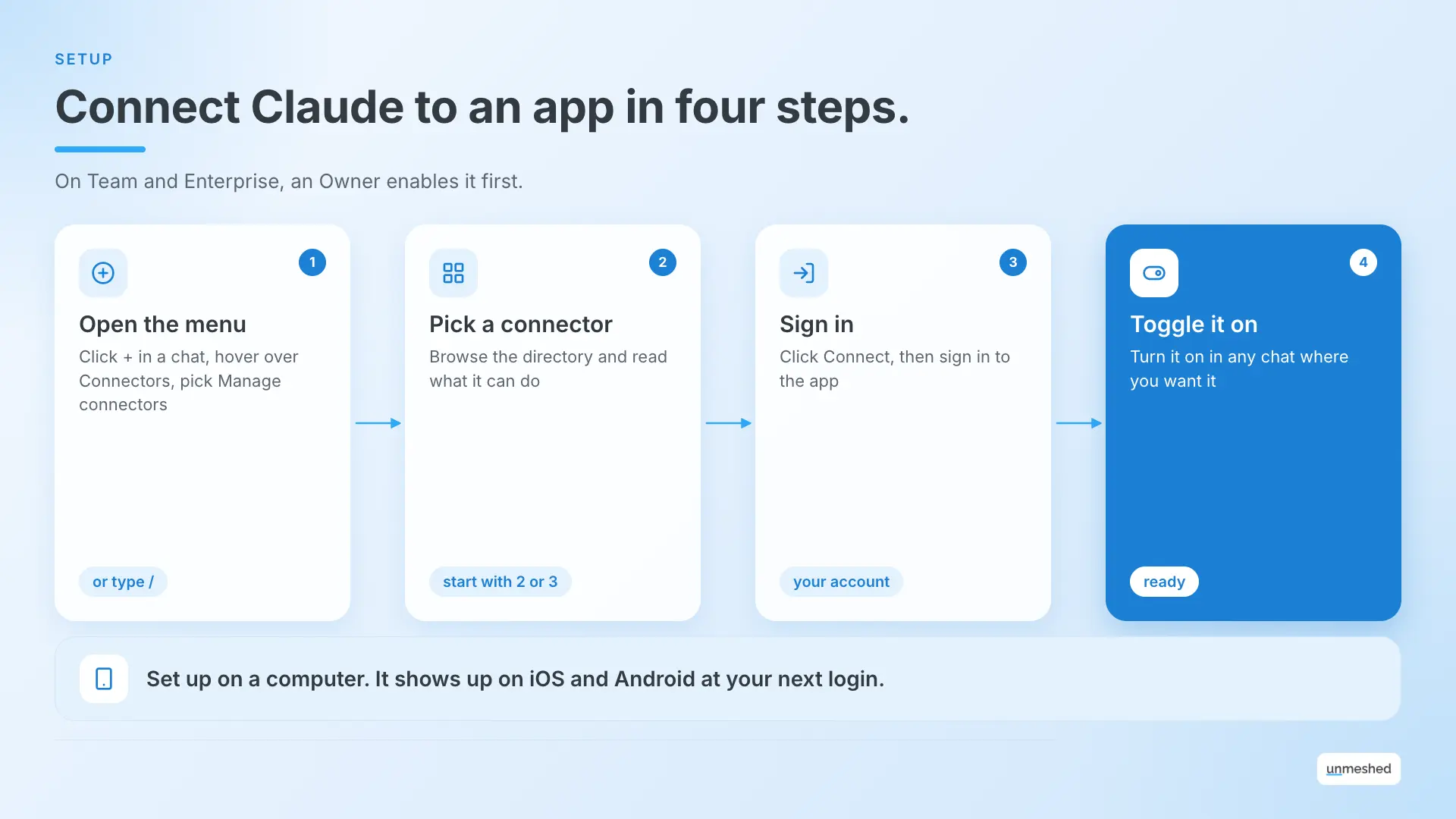
Here's the path, based on the Claude Help Center.
- Open the "+" menu in a chat (or type "/"), hover over Connectors, and pick Manage connectors.
- Browse the Connectors Directory and open one. Read what it can do.
- Click Connect or Install, then sign in to the app.
- Back in a chat, open the "+" menu again, hover over Connectors, and toggle it on.
Team and Enterprise plans have one extra step. An Owner or Primary Owner enables the connector for the organization first. That doesn't give anyone access by itself. Each person still signs in on their own.
Something fun to know-
If you can't add one yourself? You can ask. On Team plans, connector requests are on by default. On Enterprise plans, they're off until an Owner turns them on.
Phones work too. Once you connect a service on web or desktop, it shows up the next time you log in on iOS or Android. Installing from the phone is still in beta, so do the setup on a computer.
One tip. Once you have 10 or more connectors on, switch Tool access from Auto to On demand. Anthropic suggests it so your chats have more room.
4. Which Claude Connectors Are Worth Turning On?
The Claude connectors worth turning on first are the ones for apps you already use every day, like Google Drive, Gmail, Google Calendar, and Slack. Add project, design, and data connectors only when a task needs them, because every extra connector adds clutter.
| Job | Connectors | Good For |
|---|---|---|
| Files and docs | Google Drive, Box, Notion | Searching and reading documents |
| Email and calendar | Gmail, Google Calendar | Summaries and planning |
| Team chat | Slack | Finding decisions, drafting messages |
| Project work | Asana, Linear, Atlassian, monday.com | Reading boards, creating tasks |
| Design | Canva, Figma | Decks and diagrams |
| Data and analytics | Hex, Amplitude | Charts and data questions |
Start with two or three, not twenty. Each one you add is one more thing Claude has to pick from.
Files and Docs
Google Drive, Box, and Notion connectors let Claude search and read your documents, so you stop pasting text into chat. Box can also preview files inline. Turn these on first if most of your work lives in docs.
It's the closest thing to giving Claude your filing cabinet. And since Claude only sees what you can see, it won't wander into folders you don't have.
Email and Calendar
Gmail and Google Calendar connectors let Claude search your inbox and check your schedule. They're worth turning on for summaries and planning your week. On Team and Enterprise, an Owner can set send actions to Needs approval, so Claude never emails anyone without a person confirming.
Hmm, that one sounds scary at first. But reading and summarizing is the useful part anyway.
Team Chat
The Slack connector lets Claude search conversations, draft messages, and show a formatted preview before anything posts. It's worth enabling if your team's decisions live in Slack. Always read the draft before you send it.
Project Work
Asana, Linear, Atlassian, and monday.com connectors let Claude read your boards and create tasks or issues. Turn on the one your team already uses. Asana and monday.com also work as interactive connectors, so you see timelines and boards right in the chat.
Pick one. Having three project tools connected just gives Claude three places to guess wrong.
Design
Canva and Figma connectors let Claude build presentation outlines or draw flow charts and diagrams from a prompt. They're worth turning on when you make decks or diagrams often, since you see the result in the chat.
Data and Analytics
Hex and Amplitude connectors let Claude answer data questions and build charts you can adjust in the chat. They help most if your team already keeps its data in those tools. If it doesn't, skip them.
5. What Are MCP Apps in Claude?
MCP apps are interactive connectors that show a live interface inside your Claude chat, like a task board, a chart, or a design canvas. Anthropic launched them on January 26, 2026, and they work on mobile, web, and desktop on every plan.
It's the difference between a friend texting you a menu and handing you the menu. A normal connector sends back text. An MCP app shows you the thing and lets you click it.
Anthropic's launch post names Asana timelines, Slack message previews, Figma diagrams, and Hex charts as examples. Look for the Interactive badge in the directory to find them.
MCP Apps is also an official extension to MCP, so other products can support it too. Fair warning, some blog posts call these Claude Apps. Anthropic's own docs say MCP Apps, so that's what we use.
6. Are Claude Connectors Safe to Use?
Claude connectors inherit your permissions, so Claude can only reach what you can reach. Owners on Team and Enterprise can set each action to Always allow, Needs approval, or Blocked. Still, only connect services you trust, and disconnect ones you stop using.
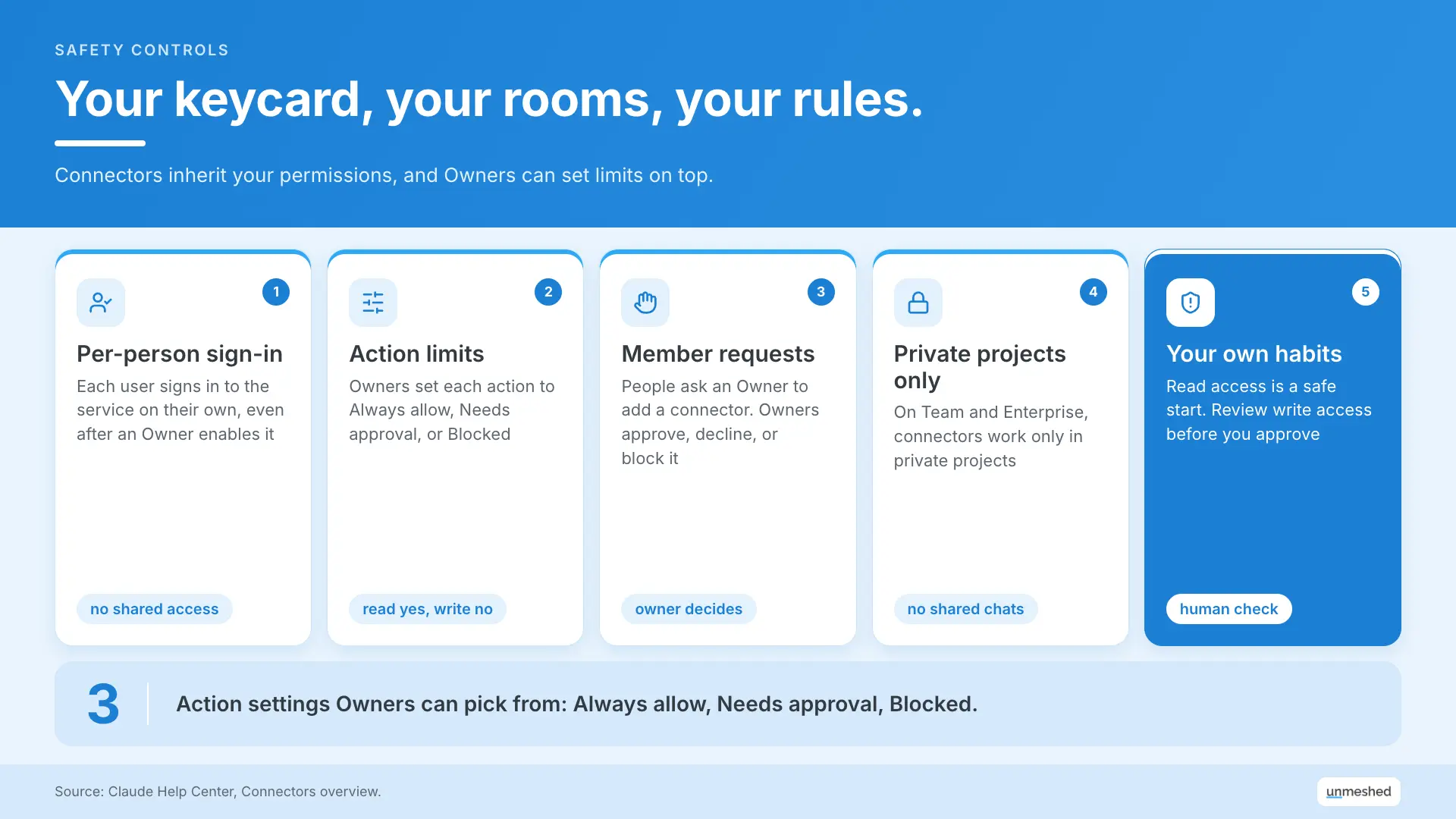
Here are the controls that matter.
- Per-person sign-in: Each user authenticates with the service on their own, even after an Owner enables it.
- Action limits: Owners can allow reading but block writing; for example, search email but never send it. It applies to everyone in the org.
- Member requests: People can ask an Owner to add a connector, and the Owner can approve, decline, or block it.
- Private projects only: On Team and Enterprise, connectors work only in private projects, and chats with synced content can't be shared.
Now the honest part. A connector can still change anything your account can change. Anthropic's own guidance is to review the access a service asks for before you say yes. Read access is a safe starting point, and write access is where you want a human check.
If you run lots of agents, beyond Claude, the bigger problem is AI agent governance, and that's a different post.
7. How Do Custom Claude Connectors Work?
A custom Claude connector is a remote MCP server you add by URL under Customize and Connectors. Claude reaches it from Anthropic's cloud, so the server must be on the public internet. Free plans can add one. Anthropic hasn't verified custom connectors.
This is the route people mean when they search Claude MCP. You bring your own server, and Claude treats it like any other connector. The setup guide has the full steps, and here is the short version.
- Go to Customize, then Connectors, and click Add.
- Hover over Custom, pick Web, and name it.
- Paste the remote MCP server URL.
- Choose how people sign in, then click Add.
If your server sits behind a firewall, the connection fails. You can allowlist Anthropic's IP ranges, and the Help Center explains how.
Here's where it gets serious for companies. Pointing Claude at one server is easy. Making that server safe for a whole team, with sign-in, retries, and a record of every call, is the harder job. Our guide to agentic orchestration covers the agent side of that.
8. How Does Unmeshed Fit With Claude Connectors?
Unmeshed gives Claude something worth connecting to. It publishes your durable workflows as MCP tools, so a Claude connector can run a refund flow or an approval process with retries and a full history. It also puts several MCP servers behind one gateway.
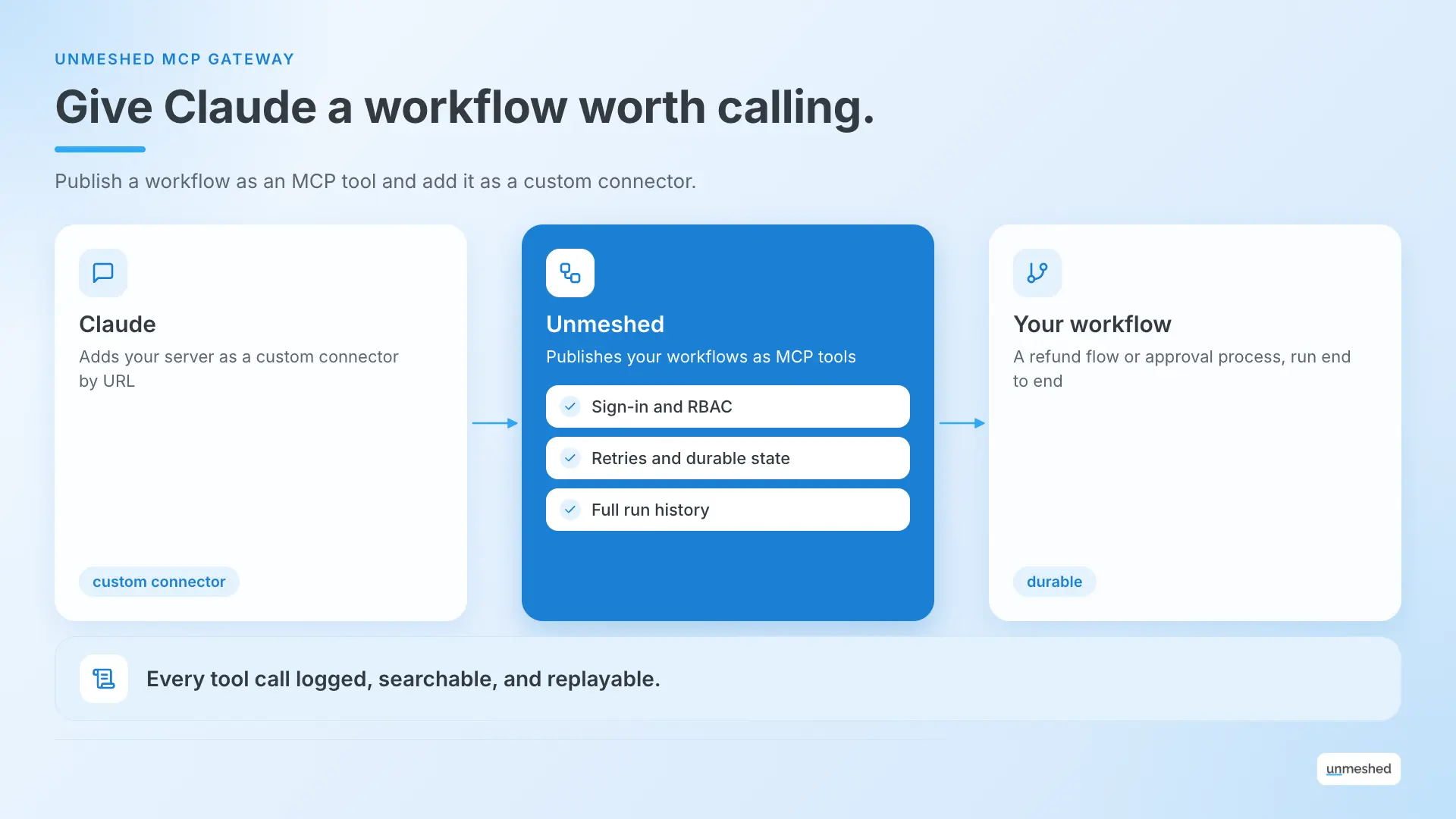
Stick with the keycard. Connectors are the keycard. We're the rooms behind the door, plus the wiring and the camera log that tells you who went where.
- Workflows as tools: Any workflow becomes an MCP tool, with retries, durable state, and error policies built in. Our MCP gateway page has the details.
- One gateway, many servers: Several MCP servers sit behind one gateway with shared sign-in and enterprise RBAC, instead of a login for each.
- A record of every call: Each tool call leaves a history you can inspect, search, and replay.
It's built on durable workflows and agent orchestration, and it runs in the cloud or on-prem.
Because custom connectors accept any remote MCP server, a workflow published as an MCP tool is something you can point Claude at, as long as the endpoint is reachable and signs in the way Claude expects.
We don't replace Claude or the connectors you already use. We sit behind the custom ones, so a tool call becomes something you can retry, limit, and audit.
Give Claude A Tool Worth Calling.
Turn one of your workflows into an MCP tool and let Claude run it with retries, auth, and a full history.
Make It A ToolConclusion
Claude connectors turn Claude from a chat box into something that works inside your apps. Start with two or three you use daily, set action limits, and add more only when a task needs them.
When you want Claude to reach your own systems, that's where Unmeshed comes in. We publish your workflows as MCP tools, with sign-in, retries, and a record of every call.
Frequently Asked Questions
Sources
- 1.Use connectors to extend Claude's capabilities, Claude Help Center
- 2.Get started with custom connectors using remote MCP, Claude Help Center
- 3.Connectors overview, Claude Docs
- 4.Your favorite work tools are now interactive connectors inside Claude, Claude Blog
- 5.What is the Model Context Protocol (MCP)?, MCP Documentation
Want Claude to reach your own systems?
Tell us what Claude should be able to do. We'll show you the safe way to wire it.
Share the tools and workflows you want behind a connector. We'll show you how to publish them with sign in, retries, and audit trails.