

How To Guide
Variable Mapping
Variable mapping lets you pass output data from earlier steps into later steps in your workflow. The Use Step Output panel in the editor makes previous step outputs browsable and draggable no need to manually write long path expressions.
Overview
When a step is selected in the workflow editor, the Use Step Output panel appears in the right sidebar. It lists all previous steps that are accessible from the selected step, along with their output data as an expandable tree.
From the panel you can:
- Browse nested fields inside any previous step's output
- Drag a field directly into a JavaScript or Python code editor
- Copy a field's path to use manually in expressions or text inputs
How to Use
- Select a step in the workflow canvas.
- In the right panel, scroll to Use Step Output and toggle on Show Output Paths.
- Expand any previous step to browse its output fields.
- Drag a field into a code editor, or click Copy path to copy it to your clipboard.
Output Tree
Each step's output is rendered as an expandable tree of objects, arrays, and primitive values.
Schema fallback
If a step hasn't been run recently, the panel falls back to a predefined schema so you can still see the expected output structure. Schema fallback is available for:
- HTTP steps —
statusCode,response - JavaScript steps —
result - Python steps —
result
When both schema and actual runtime output exist, they are merged. Runtime values take precedence.
Drag and Drop
Each node in the output tree is draggable. The syntax inserted into the target editor depends on the language.
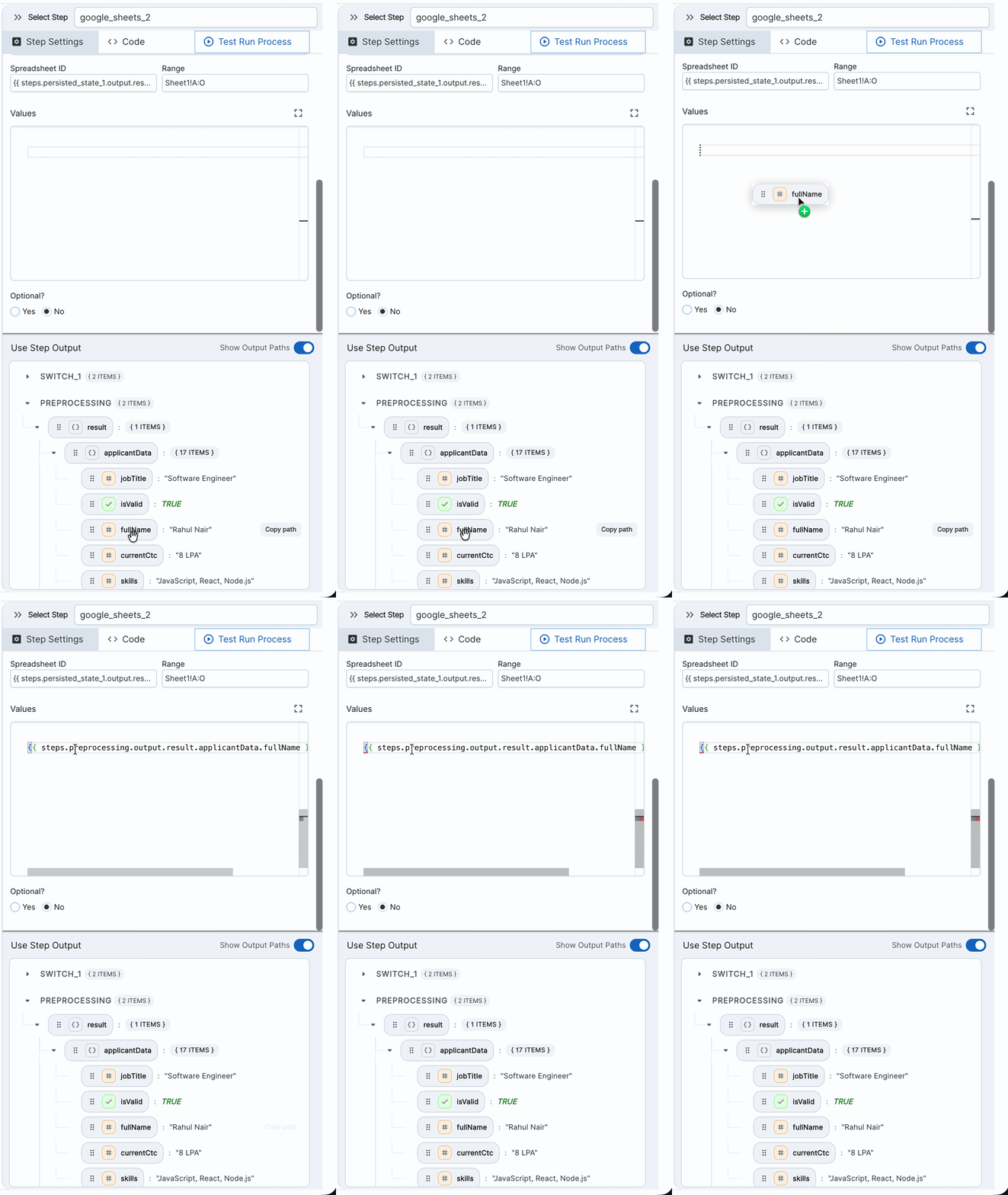
JavaScript
The {{ }} wrapper is stripped and the raw dot-notation path is inserted:
Python
Path segments are converted to bracket notation:
Expression Syntax
All variable mapping paths follow this structure:
When used in text inputs or templates:
Path notation rules
| Situation | Example |
|---|---|
| Normal key | steps.step_1.output.result.name |
| Array index | steps.step_1.output.items[0].id |
| Key with special characters | steps.step_1.output["some-key"] |
Other expression roots
Text inputs also support:
context— workflow execution contextvariables— workflow-level variablessecrets— configured secrets
Step Accessibility
The panel only shows steps that are valid to reference from the currently selected step. The rules are:
- A step can reference all earlier steps in its execution path
- A step cannot reference future steps
- Inside a parallel block, each branch can only see steps from before the parallel block not sibling branches
Troubleshooting
No steps appear in the panel
The selected step is the first executable step in the workflow. No previous steps are accessible.
Output tree is empty
The previous steps haven't been run yet. Execute the process at least once to populate the output tree.
Fields are missing from the tree
The panel may be showing the schema fallback. Re-run the process to load the latest execution output.
Note: Very large or deeply nested outputs may be truncated. The tree supports a maximum depth of 12, up to 200 children per node, and up to 5,000 total nodes.